Situation
An administrator writes and maintains the PowerShell scripts that run Flux and wants an editor that runs them against the PowerShell 7 runtime Flux uses.
Outcome
Visual Studio Code is Microsoft's preferred PowerShell editor. With the PowerShell extension pointed at the Flux PowerShell runtime, the administrator can author, run and debug Flux scripts in one place.
Steps
Download Visual Studio Code from https://code.visualstudio.com/sha/download?build=stable&os=win32-x64-user, or the copy at https://cdn.flux.mapdojo.com/external/VSCodeUserSetup-x64-1.73.1.exe.
Run the downloaded
VSCodeUserSetup-x64-<version>.exeand, if you accept the licence agreement, complete the install.Open Visual Studio Code and install the PowerShell extension from the Extensions view in the left-hand menu.
note
To install the extension offline, download https://cdn.flux.mapdojo.com/external/ms-vscode.PowerShell-2022.11.0.vsix and run:
code --install-extension powershell-<version>.vsixPoint the PowerShell extension at the PowerShell 7 runtime installed with Flux by adding it to the extension's additional executable paths.
tip
The first time you use PowerShell in Visual Studio Code, the extension needs to know which PowerShell to run. Use the runtime you installed while installing Flux.
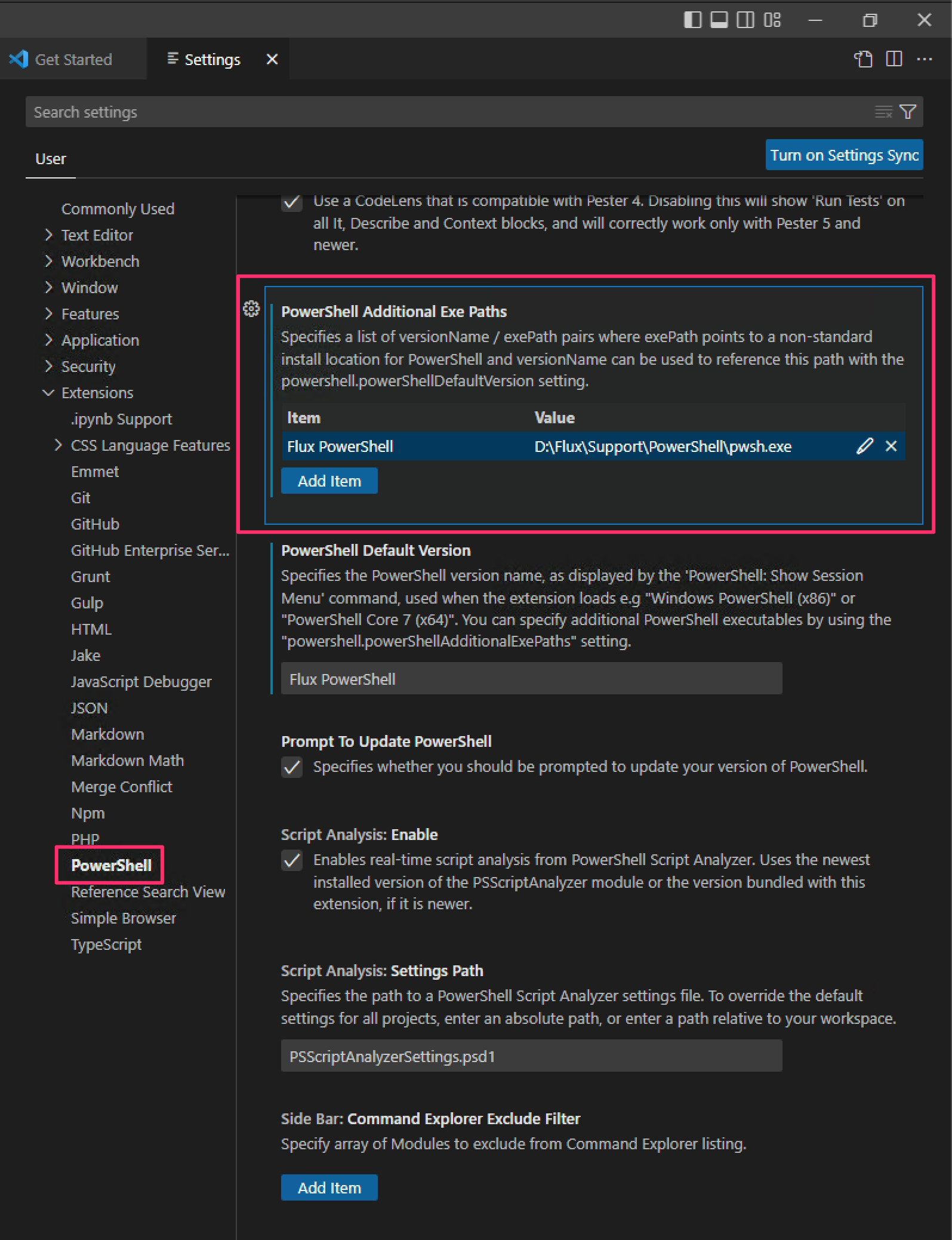
D:\Flux\Support\PowerShell\pwsh.exeRun your first Flux command. Get-FluxVersion is the simplest way to confirm you are on the latest version of Flux:
Import-Module Flux
Get-FluxVersion